
Video generation turns a still image into a moving clip. Your companion keeps the same face from their portrait, so video matches the images you have already made. Every plan can make videos: free users get Tease, and Companion and Intimate subscribers get Tease, Desire and Ecstasy on every companion, plus Obsession on anime companions only. For prompt patterns and motion examples, see video generation tips.
Quick answer
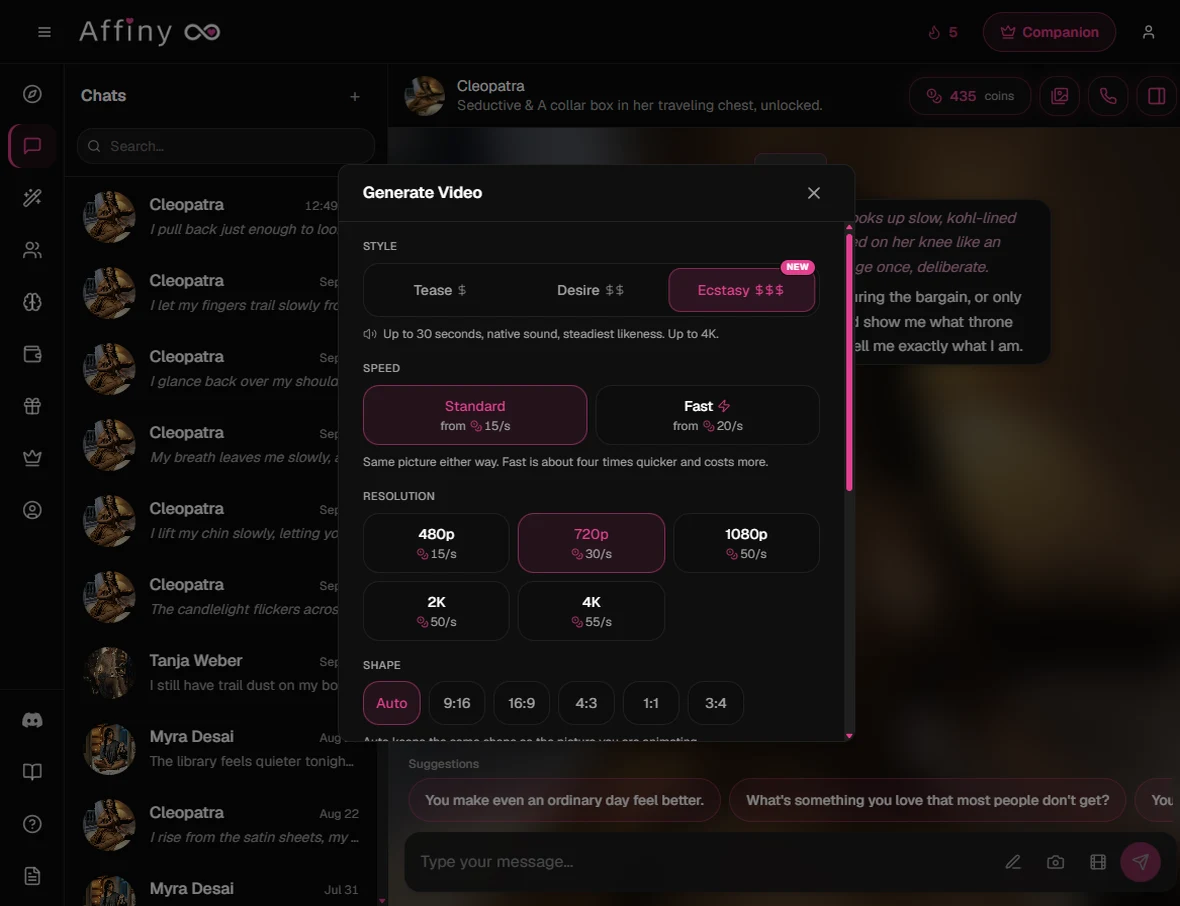
Pick a scene still or your companion's portrait, tap the film icon in the message box (Generate video), and choose a mode: Tease (quick and silent, every plan), Desire (longer, optional sound), Ecstasy (up to 30 seconds, up to 4K, sound built in) or Obsession on anime companions (4 to 15 seconds, cinematic detail, optional sound). Describe what happens, or leave it empty and your companion picks something from your chat. Tap Generate Video and the clip arrives in chat. The video always starts from the exact still you give it, so a sharp first frame matters most. If generation fails, your coins come back automatically.
Who can make videos
| Plan | Tease | Desire | Ecstasy | Obsession | Scene images |
|---|---|---|---|---|---|
| Free | Yes (double the subscriber rate) | No | No | No | Yes (15 each) |
| Companion | Yes | Yes | Yes | Yes | Yes (10 each) |
| Intimate | Yes | Yes | Yes | Yes | Yes (10 each) |
Both paid plans include the same video features. They differ only in monthly coins and how many companions you can create.
On a free account, Desire and Ecstasy show a lock in the video panel. Obsession appears only for anime companions and is locked until you subscribe. Subscribers also pay half as much for Tease and less per still (10 vs 15), which makes the image first, then animate workflow cheaper.
Tease, Desire, Ecstasy and Obsession
All four turn the same still into motion. From lightest to most powerful (for which to pick when, see Tease vs Desire vs Ecstasy):
| Tease | Desire | Ecstasy | Obsession | |
|---|---|---|---|---|
| Who | Everyone | Subscribers | Subscribers | Subscribers (anime companions only) |
| Best for | A quick moment, one simple motion | A longer scene played out second by second | The most natural motion, with her face and body steady from first frame to last | Cinematic motion with richer detail and optional sound |
| Length | 5 or 8 seconds | 2 to 15 seconds | 2 to 30 seconds | 4 to 15 seconds |
| Resolution | 480p or 720p | 720p or 1080p | 480p, 720p, 1080p, 2K or 4K | 480p, 720p or 1080p |
| Sound | Always silent | On by default, turn it off anytime, no extra cost | On by default, turn it off anytime, no extra cost | Optional sound |
| Shape | Same as your still | Same as your still | Auto (same shape as your still), 9:16, 16:9, 4:3, 1:1 or 3:4 | Same as your still |
| Speed | One speed | One speed | Standard or Fast | One speed |
Tease suits a hair flip, a slow blink, or a small gesture. It is the cheapest way to see whether a pose animates well.
Desire suits a turn, a walk, a longer reaction, or a clip where you want to hear her.
Ecstasy is the one to use when you want it to look and sound real. It builds a full scene in stages rather than one movement, runs up to 30 seconds, and goes all the way to 4K. Fast gives the same picture as Standard, just quicker, for a few more coins per second.
Obsession suits cinematic motion with richer detail over 4 to 15 seconds at 480p, 720p or 1080p, with optional sound. It appears only for anime companions; realistic companions do not offer this mode.
More creative freedom
Video now follows your direction much more closely. Describe what you want to see, and far fewer requests get toned down or turned away than before. Adult scenes between fictional adults work on every mode, under the same content rules as chat and images.
Step by step: animate a still
The most reliable path is to generate or pick a still first, then animate it.
1. Pick your first frame
Open chat and choose one of these starting points:
- A scene image you already generated in this conversation
- Any image from the chat Media gallery (images icon in the chat header, View media gallery)
- Your companion's portrait (the panel shows "Continuing from companion portrait")
The clip inherits the face, outfit, lighting, and pose from that exact frame. If the still is blurry or cropped tight on an eye, the video will be too.
2. Set the video source (scene stills)
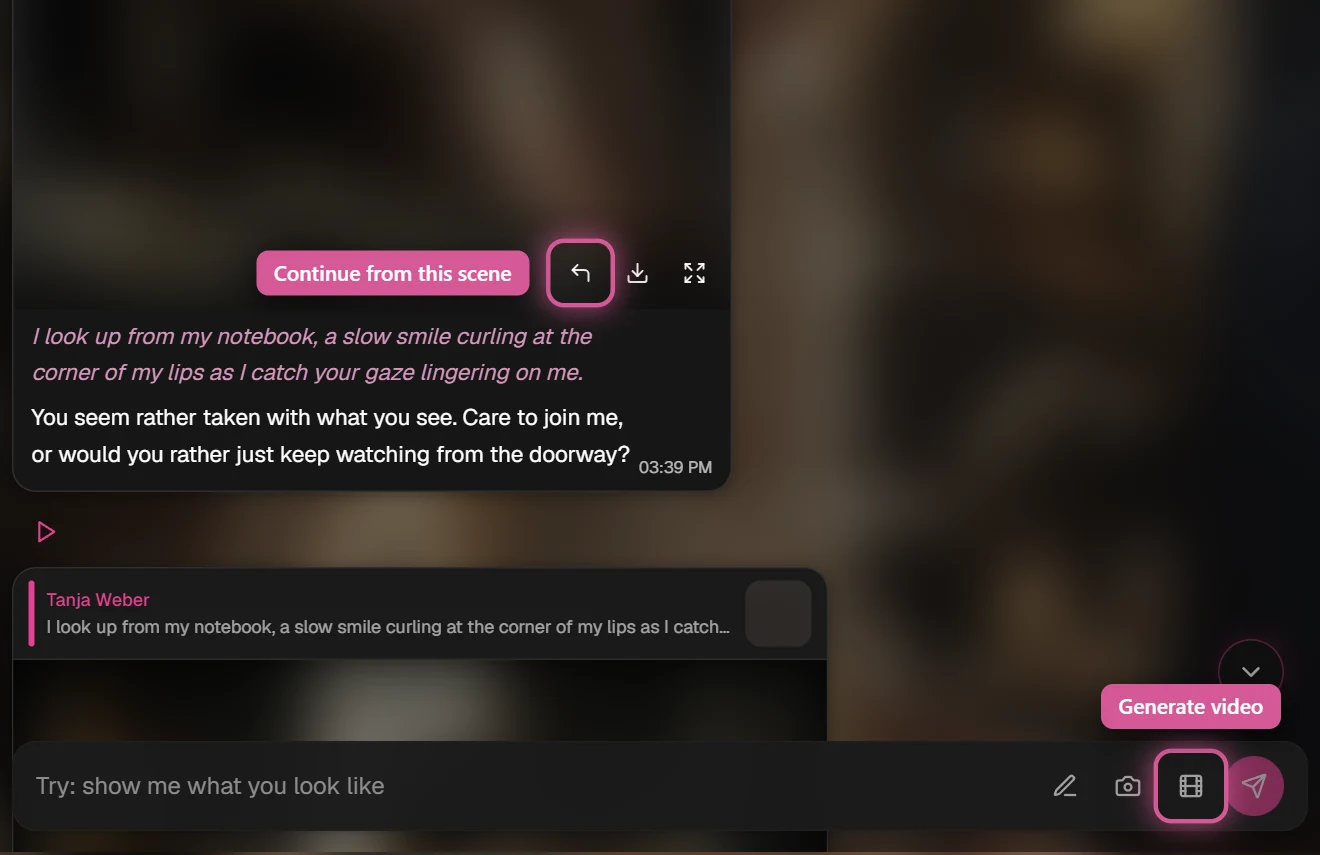
For a scene image in chat, tap Continue from this scene (the curved arrow at the bottom right of the image). A reply strip appears above the message box with the still you picked.
To pick from the gallery instead, tap Pick source from gallery (pen icon in the message box), choose a still or portrait, then continue.
For portrait-only video, skip this step and go to step 3. The Generate Video panel will show "Continuing from companion portrait".
3. Open the Generate Video panel
Tap the film icon in the message box (Generate video). The Generate Video panel opens with the three modes at the top.
4. Choose a mode
Pick Tease, Desire or Ecstasy under Style. On Ecstasy, also pick a Speed (Standard or Fast) and a Shape. Auto keeps the shape of your still.
5. Set resolution and length
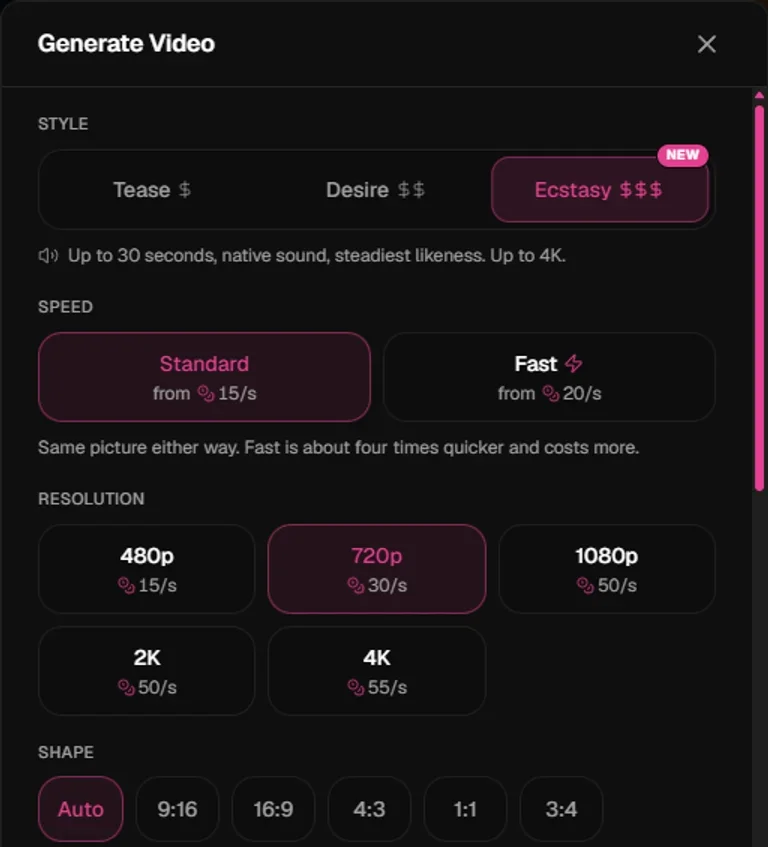
- Resolution: each button shows its coins per second. Tease offers 480p or 720p, Desire 720p or 1080p, and Ecstasy 480p up to 4K.
- Length: Tease is 5 or 8 seconds. Desire runs 2 to 15 seconds and Ecstasy 2 to 30 on the slider.
The Estimated cost at the bottom shows the total and roughly how long the clip will take, before you tap Generate Video.
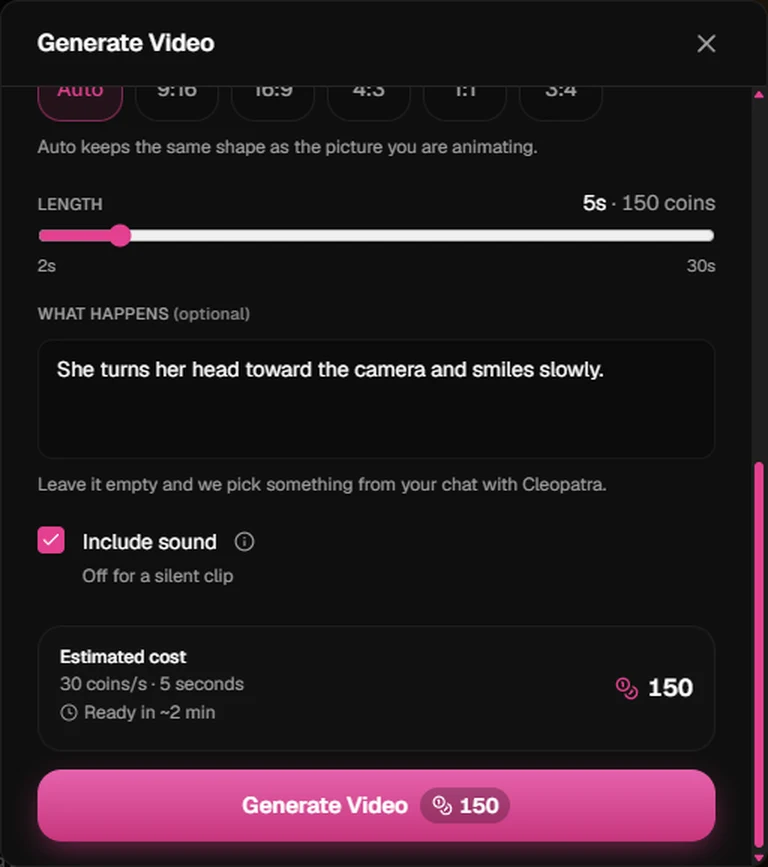
6. Describe what happens (optional)
In the What happens box, describe the motion in plain language, up to 5,000 characters. Good: "She turns her head toward the camera and smiles slowly." Weak: "She does something cool." Leave it empty and your companion picks something from your chat.
On Desire and Ecstasy, sound is on by default. Untick Include sound if you want a silent clip.
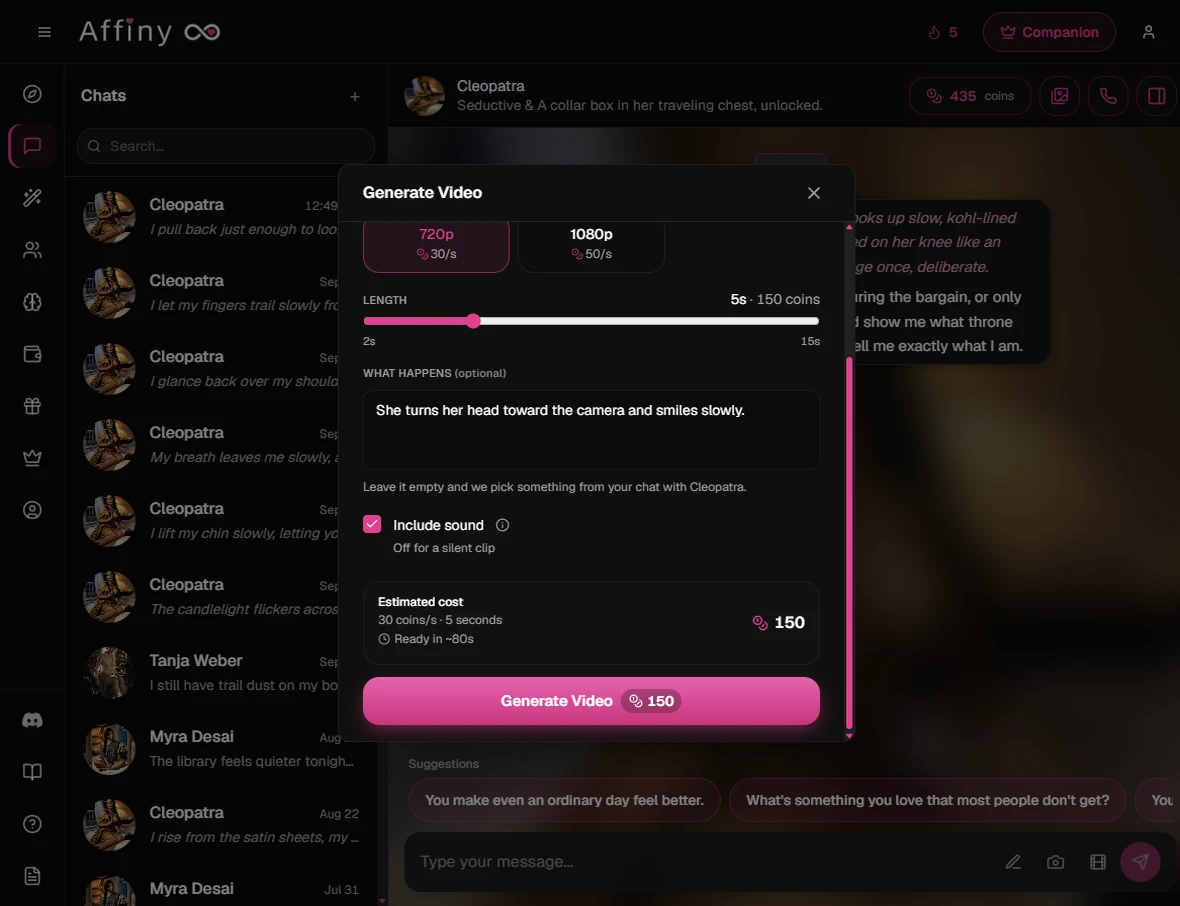
7. Generate and watch
Tap Generate Video. The finished clip appears in chat like an image message, and you can replay or download it. You don't have to wait on the screen: if you leave, the video will be waiting in the chat when you come back.
Step by step: ask in chat instead
You can skip the gallery and type a video request in the message box. When Affiny reads it as a video intent, the same popup as image generation appears with Image and Video buttons. Tap Video, then follow the same flow.
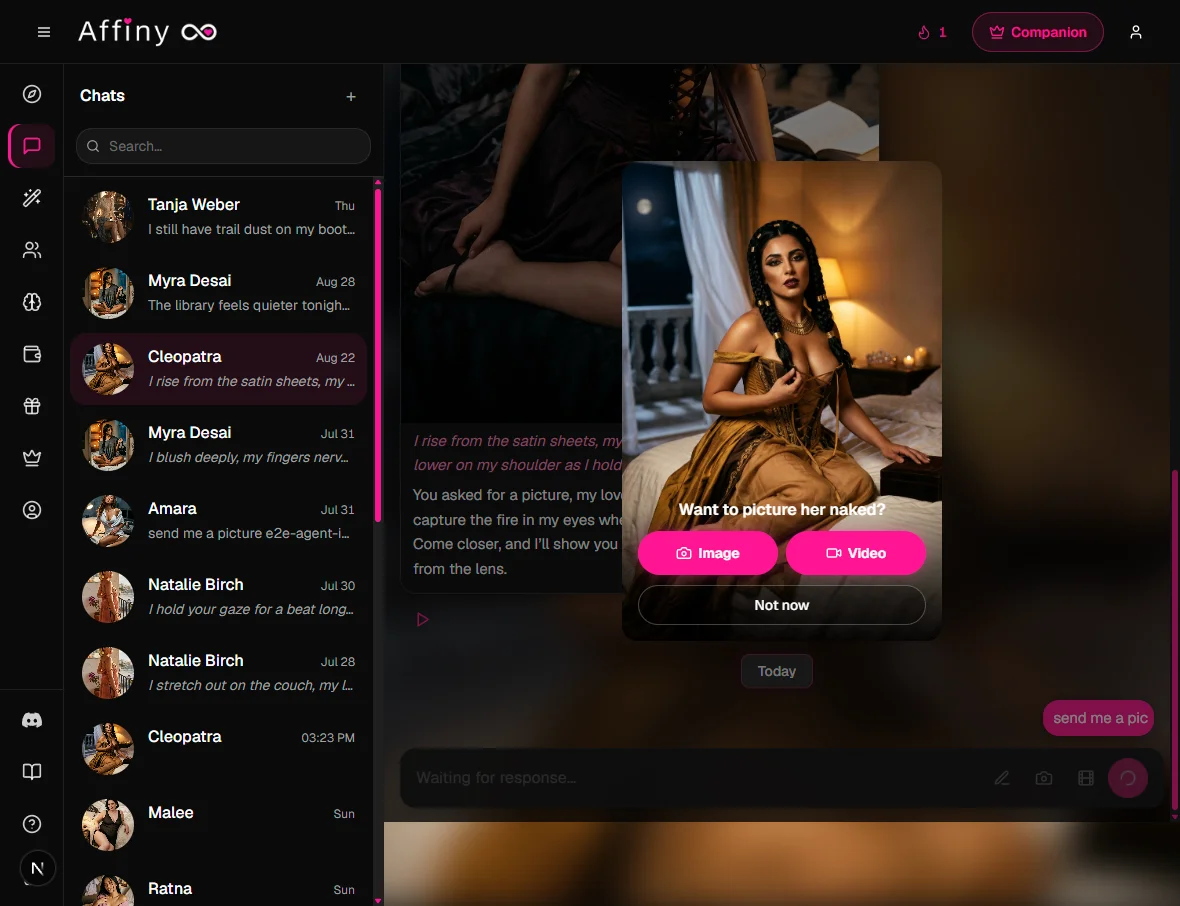
Video requests, asking plus a video word:
- "Send me a video"
- "Show me a vid"
- "Can you send a clip?"
Picture-style asks ("send me a pic", "show me what you look like", and similar) open the same popup, so you can start with an image and animate it, or go straight to video from chat. See image generation for more natural-language examples.
What a clip costs
Video is priced per second. Multiply the rate by the length you choose.
Coins per second, on a plan:
| Mode | 480p | 720p | 1080p | 2K | 4K |
|---|---|---|---|---|---|
| Tease | 5 | 10 | — | — | — |
| Desire | — | 30 | 50 | — | — |
| Ecstasy Standard | 15 | 30 | 50 | 50 | 55 |
| Ecstasy Fast | 20 | 40 | 70 | 70 | 75 |
| Obsession | 15 | 30 | 75 | — | — |
On a free account, Tease costs 10 per second at 480p and 20 at 720p.
| Example | Plan | Length | Total |
|---|---|---|---|
| Tease, 480p | Free | 5 sec | 50 |
| Tease, 480p | Subscriber | 5 sec | 25 |
| Desire, 720p, with sound | Subscriber | 10 sec | 300 |
| Ecstasy Standard, 480p | Subscriber | 5 sec | 75 |
| Ecstasy Fast, 4K | Subscriber | 10 sec | 750 |
Image plus video combo: a free user might spend 15 on the still, then 50 on a 5-second Tease, for 65 total. A subscriber pays 10 plus 25, 35 total.
If a generation fails, coins return automatically. Only successful clips charge your wallet.
Image first, then animate
Every good clip is really two steps: make a great still, then describe one great motion. Video doesn't invent a new scene. It moves the pixels you already have.
- Generate a scene image with the pose, outfit, and background you want. Use image generation tips for sharper results.
- Check the still before you animate. Face clear? Hands visible? Angle suits the action?
- Animate with a clear, verb-led motion. "She leans forward and laughs" beats a paragraph of story. On Ecstasy you can describe a few beats in order.
- Chain clips if you need a sequence. Image, then video, then a new image for the next beat.
Full prompt patterns, sound examples, and before/after fixes live in video generation tips.
If it is not working
| Problem | Likely cause | What to try |
|---|---|---|
| Motion does not match the prompt | Prompt too vague, or too much action for the length | Name one concrete action. Shorten the clip, or use Desire or Ecstasy for more time |
| Face changes mid-clip | Soft or extreme-angle first frame | Regenerate the still with a clearer face and a three-quarter view. Ecstasy holds her face steadiest |
| No sound | Tease mode, or Include sound was unticked | Tease is always silent. Use Desire or Ecstasy and leave Include sound ticked |
| Desire or Ecstasy is locked | Free account | Both need a subscription. Tease works on every plan |
| Clip blocked or refused | Content broke the content rules | Rephrase what happens or regenerate the still. Same rules as chat and images |
| Not enough coins | Wallet balance too low for the length, resolution and mode | Pick Tease, a lower resolution or a shorter clip. See plans and coins |
| Taking a while | Long clips and high resolutions take longer | Try Ecstasy Fast, or leave the app. The video will be waiting in the chat |
Adult content
Adult motion between fictional adults is supported on every video mode, subject to the same content rules as chat and images. God Mode on a subscription unlocks fully uncensored roleplay in text.
Portrait vs image vs video
| What it is | |
|---|---|
| Portrait | Static look from character creation |
| Image generation | Still from a chat moment |
| Video generation | Motion clip from a portrait or still |
Your companion's portrait anchors every scene image and every video, so she stays recognisable from frame to frame.